
Insert door & window
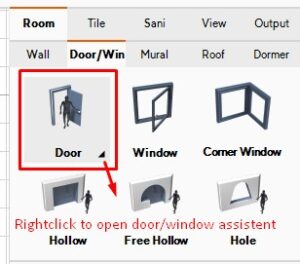
To place a Door and/or a window in your project go to menu Room | Door/Win, and left-click on the door or window button. The cursor turns into a door sign. Now click on the desired spot on the wall to place the aperture.

Adjust size and position
You can adjust the size and position using Door / Window Properties.
Pay attention to the installation depth of the window, as this is important for the number of tiles required.
Doors and windows can be automatically centered or positioned with great precision. Doubleclick on the aperture in floor view or wall view. Click on the numbers and type the exact distance. In the lower taskbar, you can use the centre function buttons.

Doors and windows can be opened and closed in 3D-view. Ideal for checking the door swing. The cursor changes to a hand surrounded by a circular red arrow. Press and hold the right mouse button, then move the mouse left or right to check the door swing,
Customize door & window
To customize the look of the doors and windows open Door/Window Assistant by right-click on the door or window in the menu, or right-click on door/window object in your plan and choose Door/Window Assistant from dropdown menu.
In the Door/Window Assistant menu, you can set the appearance of the selected aperture. In the top left corner of the menu, the folders Custom, Doors and Windows are located. All three folders can be expanded.
To the right of the folders, you can see different types of apertures from the selected folder. Click on one of them. Preview of selected door/windows is visible in the left lower corner of the screen. On the right side of the menu, there are different tabs with for setting aperture properties.
To use the same texture on all elements of your currently selected door or window click button Common material in Window / Door tab and select the texture you need.
For doors you can enable the hinges, the sill, the door leaf. Customize the material, the handle, and add sight windows when desired.
For windows browse through the tabs Window, Window Casing, Filling, Frame, Handle to customize your window.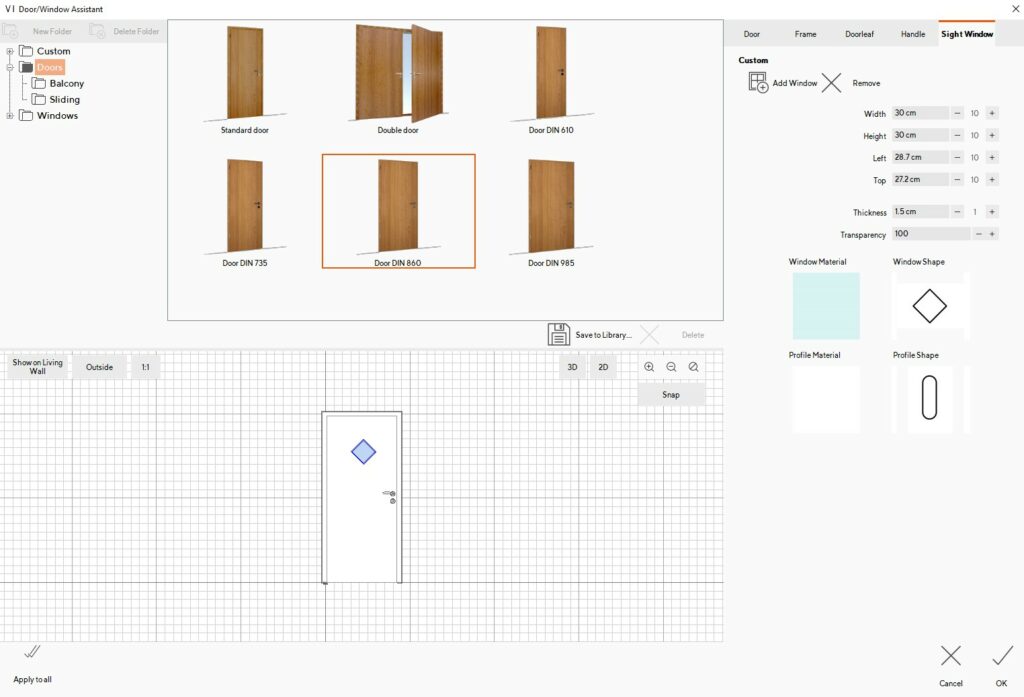
You can save custom created doors and windows by using button Save to Library.
Click Apply Style to all button to use same settings on all previously place windows/doors in your project.
If you want to change the appearance of already placed doors and windows select one of them, then click button Door/Window Assistant again.

