
Skip to content
  • Get started
  • Tutorials
  • Troubleshooting
  • What’s New
  • Get started
  • Tutorials
  • Troubleshooting
  • What’s New
  • EN
    • DE
    • SL
    • UA
Downloads
  • EN
    • DE
    • SL
    • UA
Downloads

Get started

26
  • Installation and Licensing
    • Activation / Registration
    • Installation step by step
    • Graphics driver for laptops
    • Moving libraries, projects, and data to another partition
    • AntiVirus software Settings
  • Libraries
    • Limited accessible manufacturer / brand
    • Material library
    • Adding custom tiles
  • Practice with
    • Light settings
    • Module Assistant (tile patterns)
    • Customize sanitary with murals
    • Built-in Bathtubs
    • Change materials
    • Ceiling skylight
    • Creating a mansard or french roof
    • Tile Borders
    • Edit objects
    • Creating Roofs
    • Adding custom objects
  • Setup
    • Updating Graphics card
    • Corporate identity in the Printer Settings
    • Network settings for ViSoft data files
    • Installing brands from the Updatemanager
    • ViSoft System Specifications
    • How to backup ViSoft Data
    • Activate ViSoft / Get a license code

Tutorials

162
  • Output
    • Output > Picture Print: Save Picture
    • Output > Plan – print 2D plans: Automatic Dimensioning
    • Output > Picture Print
    • Output > Part lists – materials
    • Output > Part lists – print sanitary part lists
    • Output > Part lists – print tile part lists
    • Output > Plan – print 2D plans
    • Tile Silicone
    • Ceiling Plan – View Height
    • Adding a picture to the plan
    • Bottom Frame Information
    • Insert a footnote
    • Adding Logo’s
    • Adding text labels in the Output
    • Picture Print – Creating Images and parallel projections.
    • Printing the plan on multiple pages
    • Creating custom pages for a plan
    • Exporting to zip files or to CAD
    • Adding a custom Page
    • Adding Impacts
    • Adding a symbol legend to a Plan
    • Price per box
    • Reuse of tile
    • Changing the appearance (drawing Layers)
    • Printing in Landscape
    • Set scale for printing
    • Diagonal dimensions
    • Dimension
  • Phototuning
    • Add-On: Photo Tuning
    • Add-on Photo Tuning > V-Ray Rendering Queue
    • How to build the high quality project in ViSoft Premium
    • Postprocessing in V-Ray 5
    • Clean-up or archive the Phototuning render queue
    • Light properties settings for Phototuning
    • Calculate Dots per inch (DPI)
    • V-Ray Frame Buffer: post-processing the image
    • 101 Phototuning
    • Sharing a 360-Panorama on Facebook
    • Object correction (strange looking glass)
  • Room
    • Custom Murals
    • Door/Windows constructor
    • Room > Wall: Quick room wizard
    • Room > Dormer
    • Room > Roof
    • Room > Mural : insert murals
    • Room > Door/Win : placing doors and windows
    • Room > Wall : drawing walls
    • Room > Wall : drawing walls
    • How to build the high quality project in ViSoft Premium
    • How to use Sketchup Warehouse in ViSoft Premium
    • Creating a balcony
    • Save a mural as sanitary object
    • Stairs
    • Hollows and holes
    • Creating a mansard or french roof
    • Ceiling skylight
    • Doors and windows
    • Drawing round walls and murals
    • Quick room
    • How to draw walls
    • Flip the room
    • Insert Autocad drawing as background image
    • Creating Roofs
  • Sanitary
    • Object > Sanitary > Sanitary Browser: Settings
    • Object > Sanitary > Sanitary Browser: tab Pictures
    • Object > Sanitary > Sanitary Browser: tab Search
    • Object > Sanitary > Sanitary Browser: Object Properties
    • Object > Sanitary > Sanitary Browser: Objects tab
    • Object > Fast Layout
    • Object > Sanitary
    • How to use Sketchup Warehouse in ViSoft Premium
    • Limited accessible manufacturer / brand
    • Rotate Objects
    • Object correction (strange looking glass)
    • Save a mural as sanitary object
    • Diffuse, bump and displacement maps
    • Sites for free 3D objects
    • Rotate sanitary object on wall
    • Deep link manufacturer / wholesaler
    • Drawing Layers
    • Bath plinth / panel
    • Change materials
    • Built-in Bathtubs
    • Customize sanitary with murals
    • Mirror objects
    • Edit objects
    • Image Board
    • Adding custom objects
    • Grouping objects
  • Tiles
    • Tile > Edges: Profile Browser
    • Tile > Place > Parquet: Parquet Pattern Assistant
    • Tile > Place > Material: Material Library
    • Tile > Place > Tiles: Module Assistant
    • Tile > Place > Tiles: Simple Pattern Assistant
    • Tile > Place > Tiles: Joint settings
    • Tile Browser > Tiles database settings
    • Tile Browser > tab Pictures
    • Tile Properties
    • Tile > Place > Tiles: Tile Browser
    • Tile > Region > Optimize tiling
    • Tile > Edges
    • Tile > Fast : Assistants for quick tiling
    • Tile > Borders
    • Tile > Place
    • Tile > Region
    • Limited accessible manufacturer / brand
    • Photofiltre
    • Profiles on external corners
    • Edit tile properties
    • Material library
    • Tiling orientation random
    • Drawing Layers
    • Adding a non-rectangular tile image (transparent background)
    • Module Assistant (tile patterns)
    • Tile boards and panels (showroom design)
    • Reuse of tile
    • Creating skirting boards
    • Tilesets
    • Wall Board Assistant
    • Tile Borders
    • Adding custom tiles
  • View
    • View > Advanced: Save Video
    • View > Advanced: Save Panorama
    • View > Advanced: Rendering Style
    • View > Light > Lights: Properties
    • View > Advanced
    • View > Material > Simple
    • View > Light
    • View > Camera
    • Using Light Templates
    • Global Illumination settings
    • Sharing a 360-Panorama on Facebook
    • Creating videos, photos and panoramas
    • Light settings
    • Fast consulting mode
    • Change materials
    • Submenu Camera: navigating in 3D-view and working with viewpoints
    • Background project: sky, image or 360-photo
  • ViSoft Live
    • Add-on ViSoft Live > Controlling the Living Wall display
    • VR – Oculus Rift set up
    • How do I set up the HTC Vive?
    • How to start Virtual Reality in ViSoft
    • Settings Living Wall and floor
    • Second screen – auto board-assistant

Troubleshooting

5
  • Databases and updates
    • Limited accessible manufacturer / brand
  • Problems with installation, setup and license
    • Installation step by step
    • Graphics driver for laptops
    • Activate ViSoft / Get a license code
  • Crashing
    • My ViSoft Crashed – What do I do?
  • Home
  • Docs
  • Tutorials
  • Output
  • Adding Logo’s

Adding Logo’s

In the output select the Print Settings. In the menu select the button with 3 dots on it to add a logo, you can use a BMP, JPG or GIF file. Check the box above the logo on the position you want to use.  The numbers accord to the left (1), middle (2) and right (3) of the page. You can also select if you want them on the top or bottom of the page.
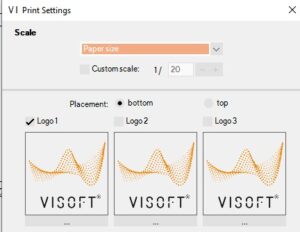
It is also possible to add a logo with only text, for example, to have a disclaimer in the logos. For this use about a size of 850x115px.

add logo, logo, logo and text

Mercedesstraße 19
71063 Sindelfingen, Germany

Tech.support: +49 7031 / 49165-99

support@visoft.de

visoft360.com

visoft.de

Youtube Linkedin Pinterest Xing Facebook Instagram
Get started
  • Installation and Licensing
  • Libraries
  • Practice With
  • Setup
Tutorials
  • Room
  • Tiles
  • Sanitary
  • View
  • Output
  • ViSoft 360
  • ViSoft Live
  • Phototuning
Troubleshooting
  • Problems with installation, setup and license
  • Crashing
  • Databases and updates

© 2025 ViSoft GmbH

Imprint

  • Get started
  • Tutorials
  • Troubleshooting
  • What’s New
  • Get started
  • Tutorials
  • Troubleshooting
  • What’s New
Downloads
  • EN
    • DE
    • SL
    • UA