A laptop or PC with an additional dedicated NVIDIA graphics card may require a few extra steps to make sure ViSoft uses the dedicated NVIDIA graphics card instead of the integrated graphics processor.
NVIDIA Control Panel
If NVIDIA Control Panel is available on the laptop, follow these steps:
Step 1: Install the latest NVIDIA graphics driver from NVIDIA’s website:
Step 2: Restart the laptop after installing the driver.
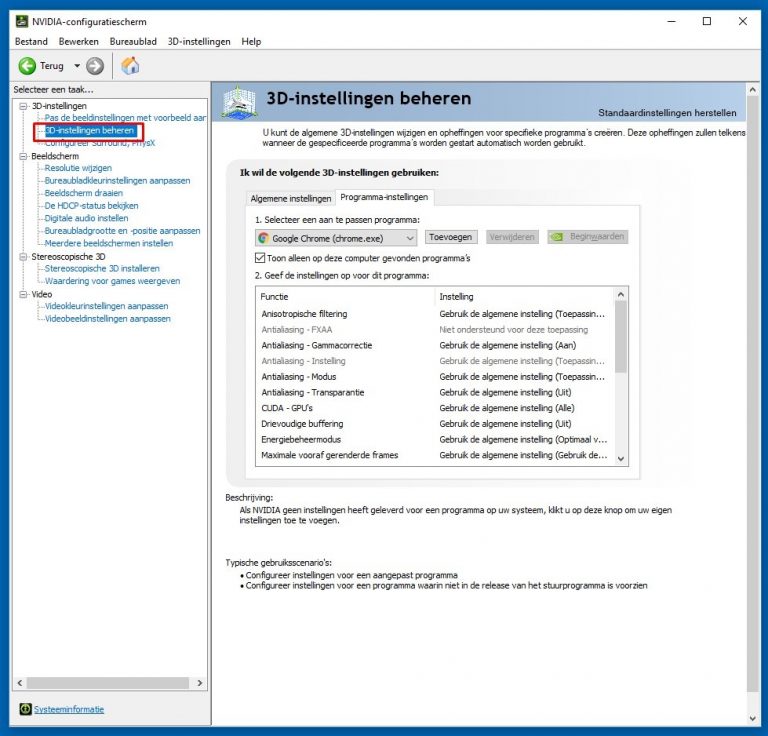
Step 3: Open NVIDIA Control Panel by right-clicking on the desktop.
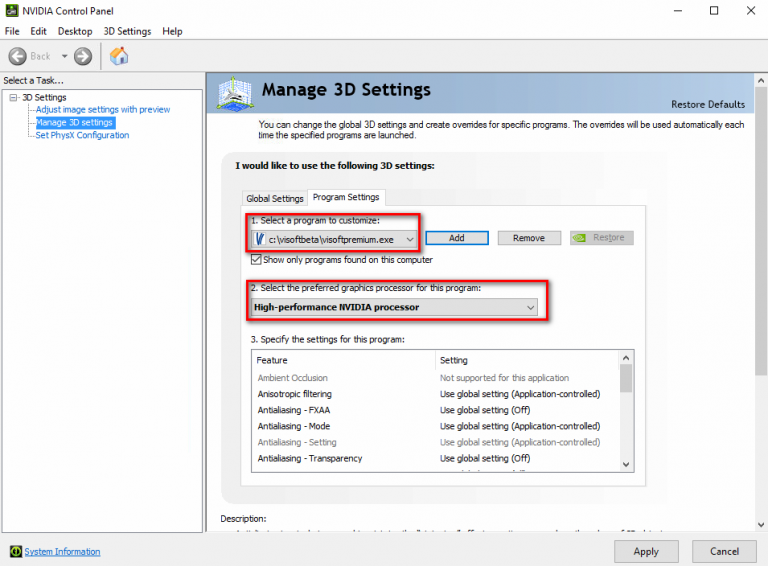
Step 4: Go to Manage 3D settings.
Step 5: Make sure the Global Settings tab is selected. Step 6: Under Preferred graphics processor, select High-performance NVIDIA processor.
Step 6: Under Preferred graphics processor, select High-performance NVIDIA processor.

Step 7: Click Apply and restart ViSoft.
Â
If NVIDIA Control Panel is not available
On newer systems, NVIDIA Control Panel may not be available. In this case, the preferred graphics processor has to be selected through Windows Graphics Settings.
Windows 11
Step 1: Open Settings.
Step 2: Go to System → Display → Graphics.
Step 3: Find ViSoft in the application list. If it is not listed, click Browse or Add desktop app and select the ViSoft executable (.exe) file.
Step 4: Select ViSoft and click Options.
Step 5: Select High performance. Make sure that the dedicated NVIDIA graphics card is displayed for this option.
Step 6: Click Save and restart ViSoft.
Windows 10
Step 1: Open Settings.
Step 2: Go to System → Display → Graphics settings.
Step 3: Select Desktop app and click Browse.
Step 4: Add the ViSoft executable (.exe) file.
Step 5: Select ViSoft, click Options, and choose High performance.
Step 6: Click Save and restart ViSoft.
The High performance option normally corresponds to the dedicated NVIDIA graphics card, while Power saving normally uses the integrated graphics processor.
Unlike the old NVIDIA Control Panel setting, Windows Graphics Settings usually requires the preferred GPU to be configured separately for each application.
Â
Â
Â