
First step when creating a new project is drawing walls. You can do this manually or by using Quick Room wizard.
Draw room manually #
In ViSoft there is a distinction between walls and murals. Walls form the shell of the project: they are therefore always the outer edge. Murals form the separation within the space.

To draw walls manually go to menu Room | Wall to begin drawing the walls. The cursor changes in a green cross. Drag the wall to an endpoint or type in the length and press enter.
TIP: always draw clockwise, so the inner and outer walls are facing the right way. If not, it causes troubles when placing tiles and roofs.
Set the Angle Mode to automatically draw corners in 90 degrees or free. Or keep SHIFT pressed to change modes.
To draw Round walls keep CTRL pressed.
There is no need to draw the last wall: use the button Close Room. If you prefer to close it, take note the last point meets the first point to close the room correctly.
Select a wall to move it. Connecting walls are automatically adjusted to the change. This function also works after placing tiling and sanitary.
Walls can be divided. Select in floor view a wall, and select with a right mouse click Split.
You may select any wall and delete it by clicking Delete button or pressing Delete key on the keyboard.
After drawing the wall you can see its properties in the functional surface. After you selected the wall you can change any wall properties (Length, Thickness, Angle, Height). Height is always the same for all the walls in the project and represents the height of the ceiling.
Quick Room #
To use the Quick Room wizard, go to menu Room | Wall, and press the button Quick room. Here you can choose a predefined room shape, saving you time from drawing the walls manually.
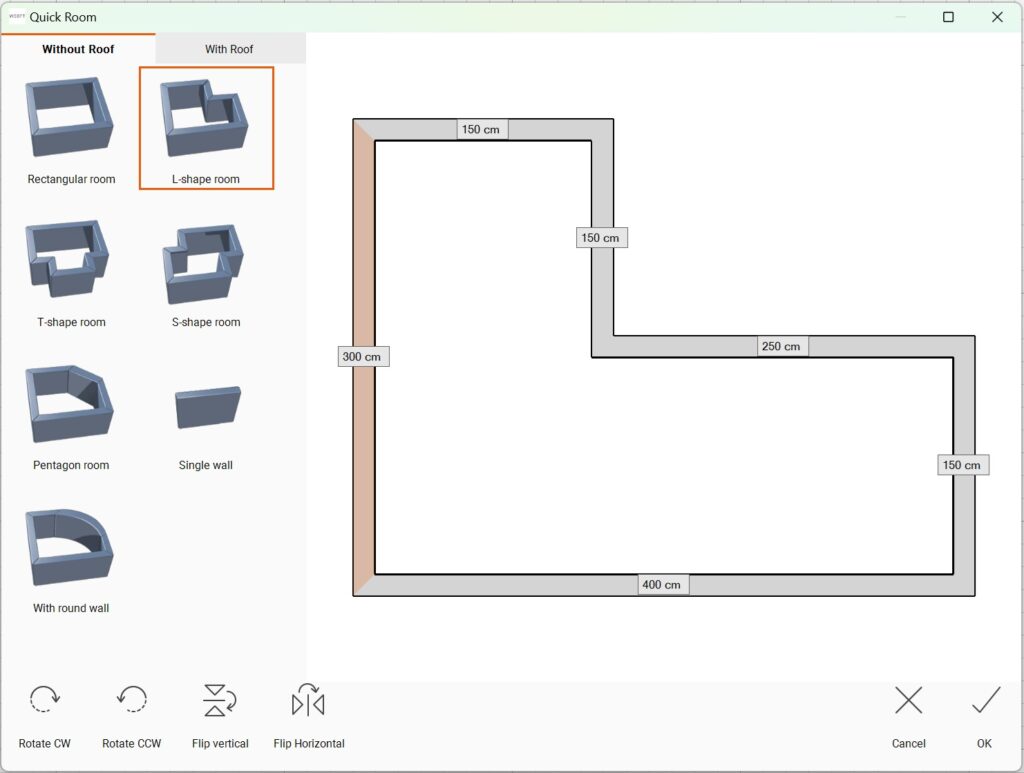
Define the length of each wall, click and type, use TAB to spring to the next field. Use the buttons to rotate or flip the room if desired. Press OK when finished. Note that afterwards the lengths of walls can be edited, but not the shape. Edit the wall properties in menu Room | Wall.

